 Cinch
Cinch
Cinch - video compressor and trimmer. Any video.
Any size. Done.
A portable video compressor and trimmer for Windows.
Drop a clip in, pick a target size, and Cinch shrinks it to fit. No cloud round-trips, no command lines.
Why it exists.
Compression should feel like a verb,
not a workflow.
You shouldn't need a degree in codecs to fit a clip under Discord's upload cap. Cinch wraps FFmpeg in something a human can use, picks sensible defaults, and gets out of the way until you want a knob to turn.
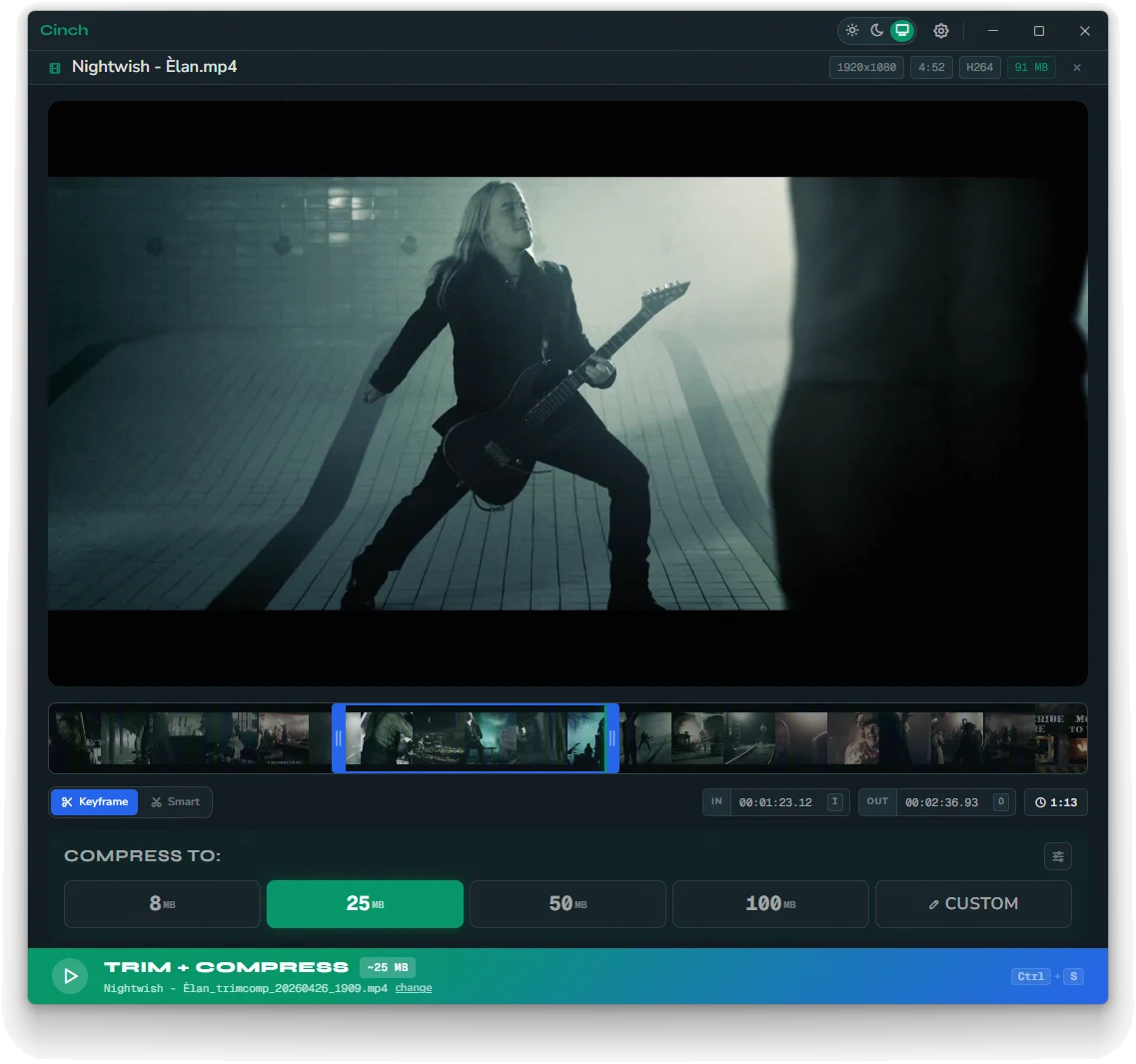
Pick a number
Six target sizes cover almost everything you'll ever need to share. Type a custom one for the rest.
Trim in place
Scrub a thumbnail timeline, drop in / out points, and only pay bytes for the seconds you keep.
Stays on your machine
No file uploads, no waiting in a queue, no third party watching what you encode.
Public domain
CC0 licensed. Fork it, ship it, embed it, ignore it. Yours forever, no strings.
Six presets and a custom field.
The presets aren't arbitrary - each one corresponds to a real-world upload limit. Pick one, hit compress, and Cinch will iterate until it lands inside the budget.
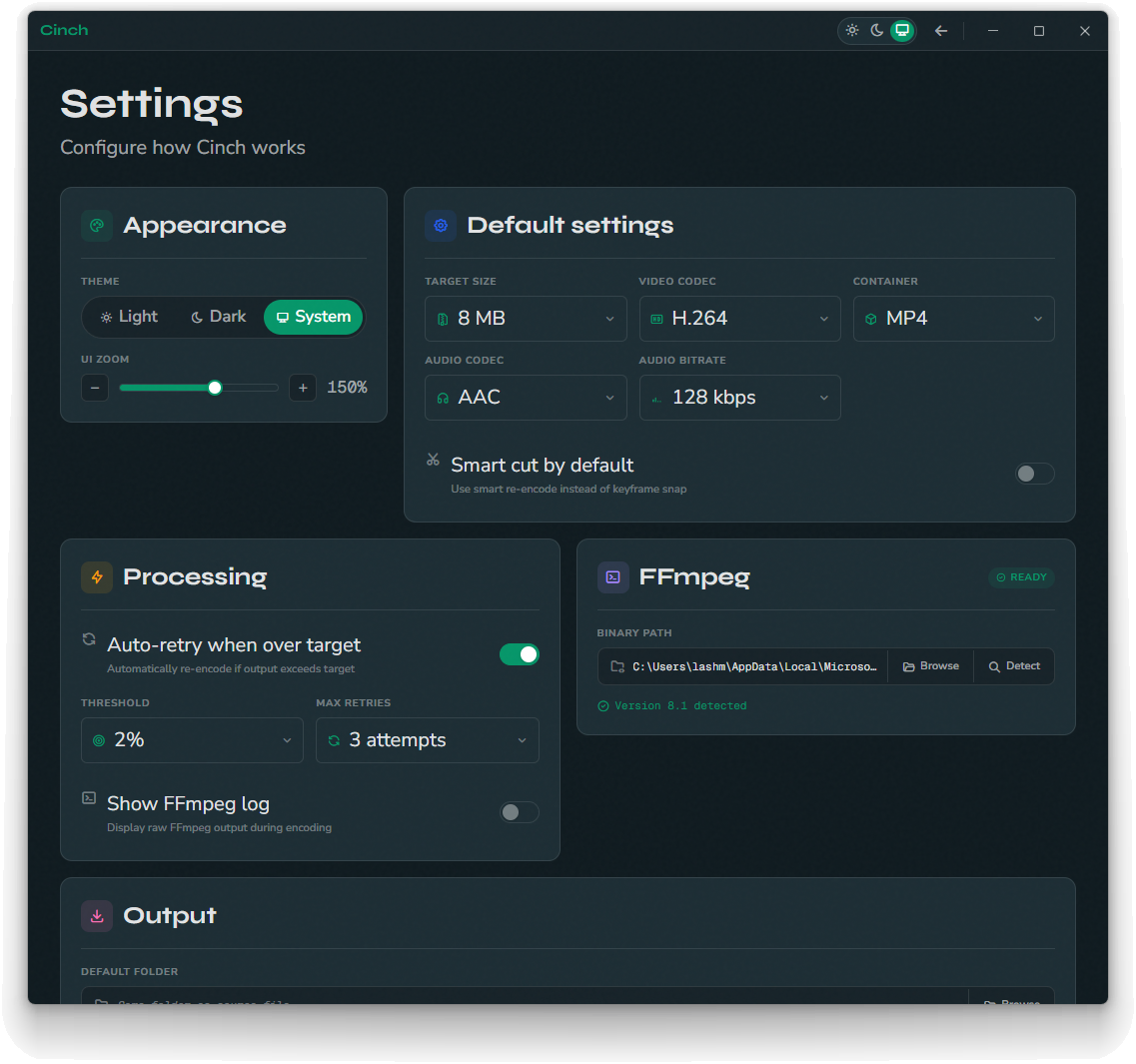
Cinch starts with a calculated bitrate, encodes a pass, and if the result misses the target it retries with an adjusted ceiling. Three attempts by default - tunable in settings.
Built for the five-minute use case.
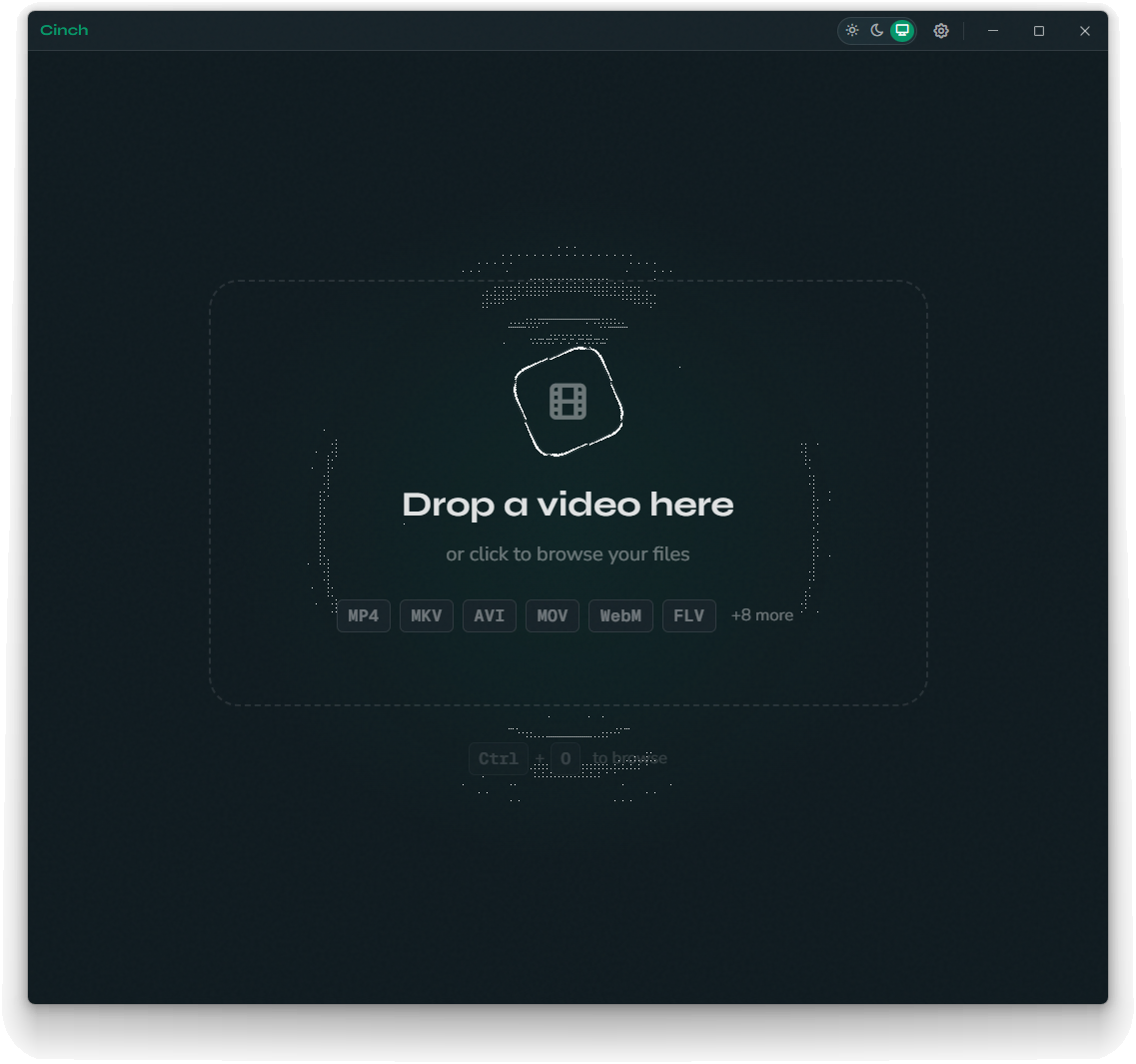
Drag a video onto the window. That's the start.
MP4, MKV, AVI, MOV, WebM, FLV and a handful more. No project files, no library, no asset management - just one clip at a time, the way you actually work.
- 11+ container formats accepted
- Click to browse if you prefer
- Animated drop indicator that's actually clear
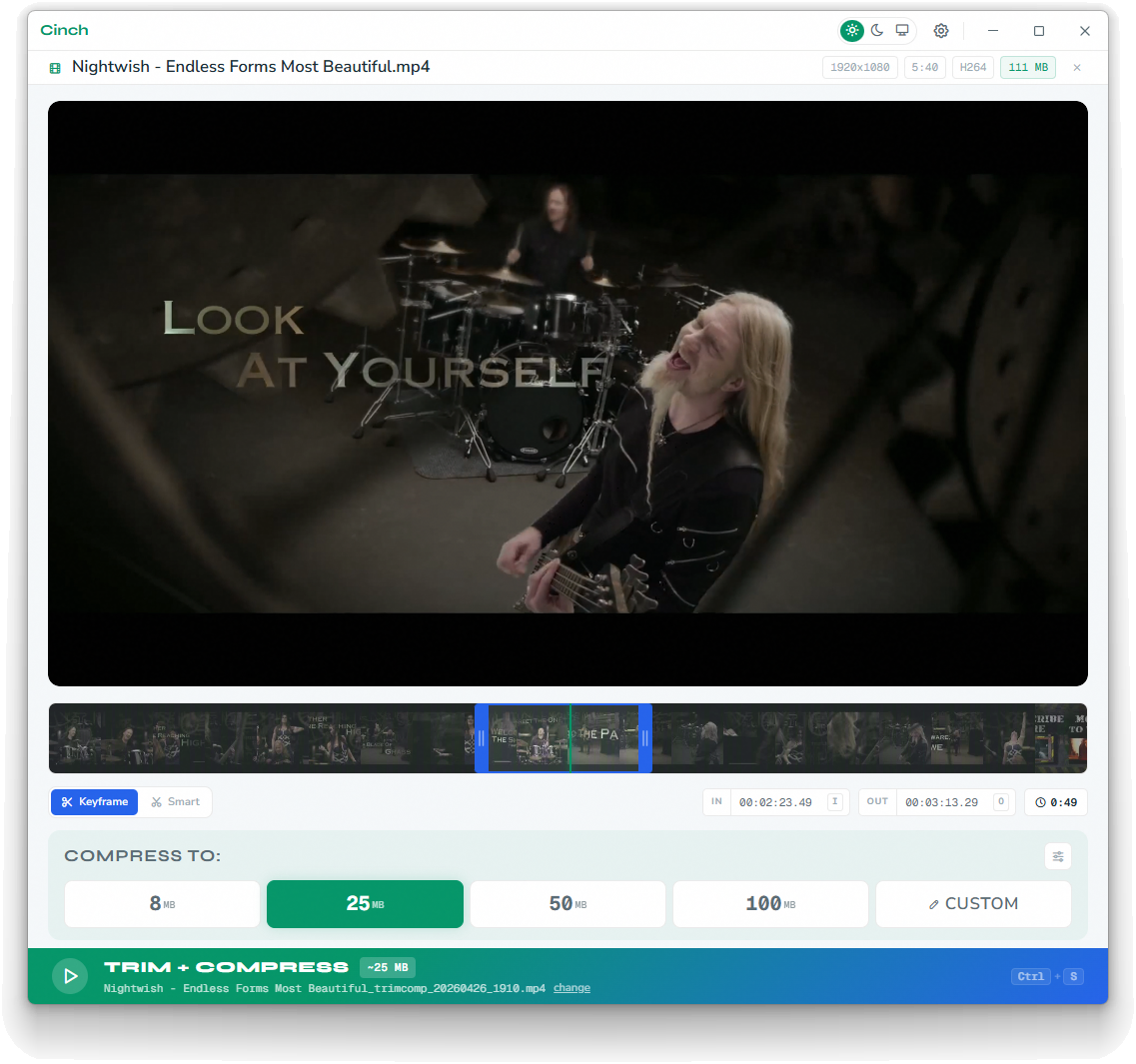
A real timeline, not a pair of input boxes.
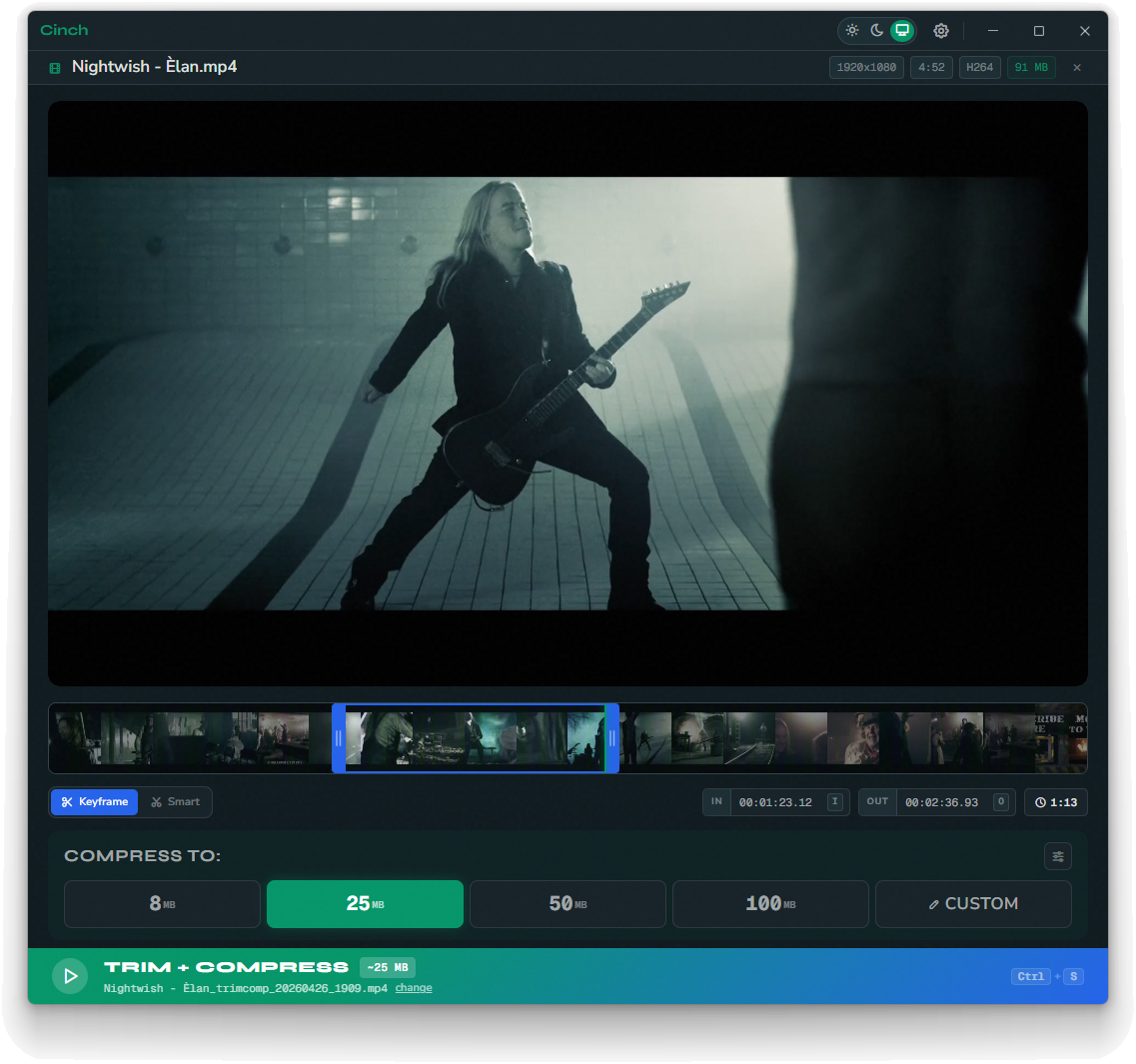
Cinch builds a thumbnail strip from your file so you can see what you're cutting. Drag the handles to set in and out, scrub between them, and only the seconds you keep get encoded.
- Frame-accurate handles
- Smart cut on by default for clean edges
- Keyboard-only workflow if you want it
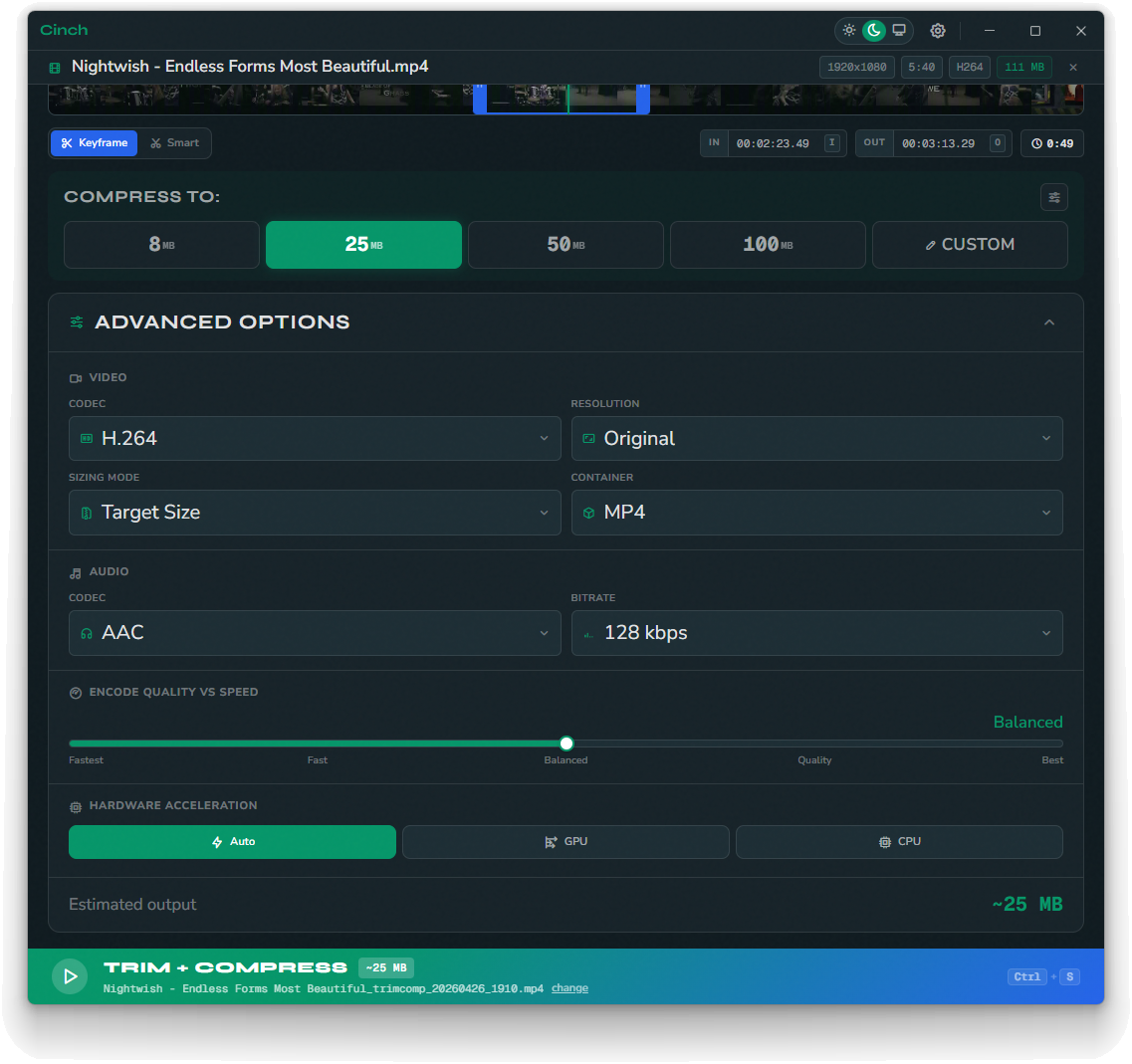
Knobs when you want them, hidden when you don't.
The advanced panel folds out for codec choice, audio bitrate, hardware acceleration, output container, and a quality bias slider. Everything has a sane default, so you only touch what matters to you.
- H.264, H.265, VP9
- NVENC, AMF, QSV detection
- Quality / size bias slider
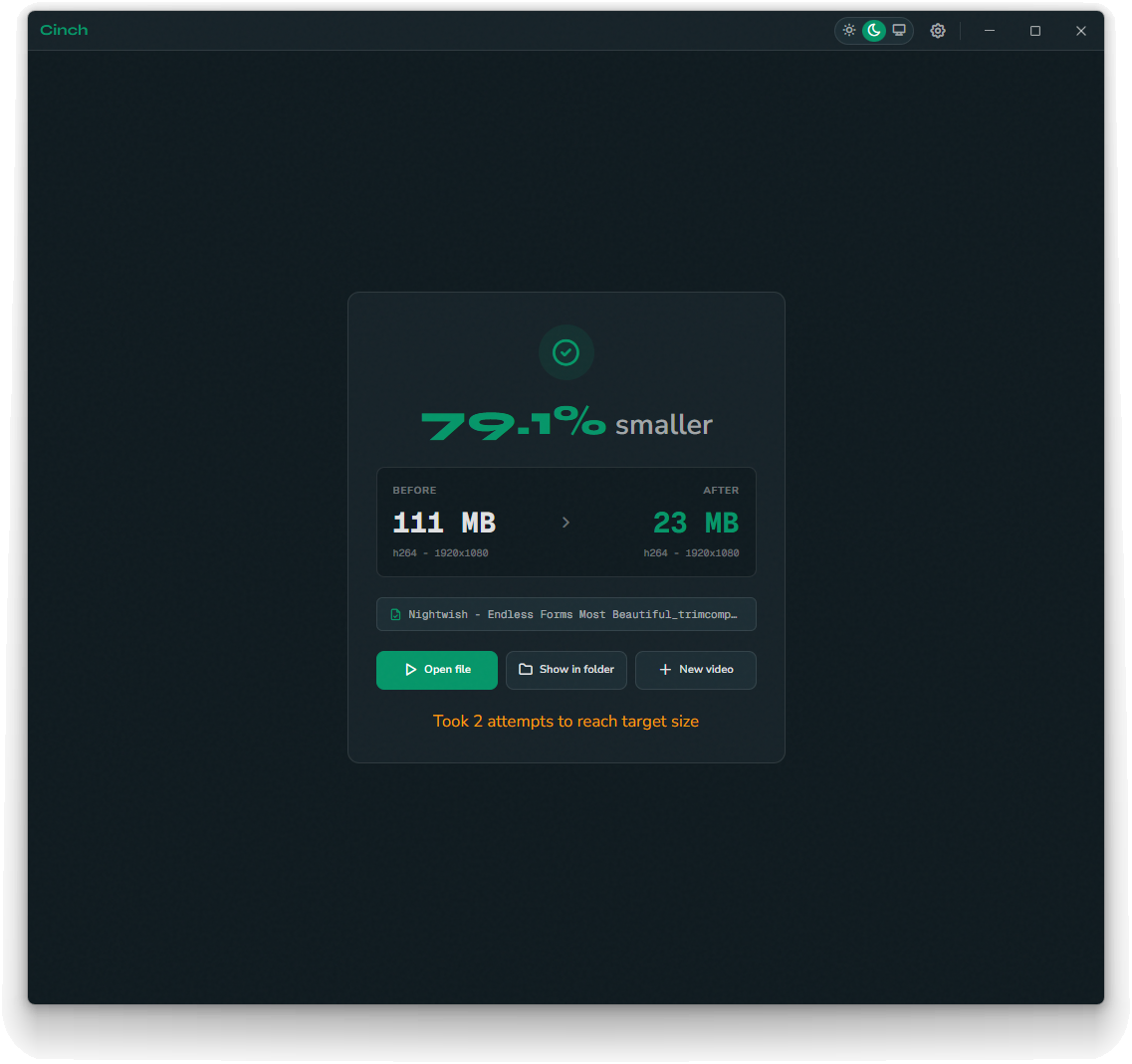
One number on screen. The one you wanted.
When the encode lands, you see the percentage saved, before and after sizes, how many attempts it took, and a button to reveal the file. Open in folder. Done.
- Before / after side by side
- Reveal in Explorer
- Auto-retry stops at your set ceiling
Whatever your GPU
is willing to do.
Cinch checks what your machine has on boot and lights up the matching encoders. CPU fallback always works. Pick by name in the advanced panel, or let it auto-select.
Universally playable. Best balance of compatibility and file size. Works everywhere a video tag does.
Roughly half the bits for the same look. Choose this when the target file size is brutal and your viewer is modern.
Royalty-free, browser-native. Slower to encode than H-codecs but excellent for web playback in WebM.
128 kbps default, tunable from 64 to 320. Mono fold-down for voice clips when you need every byte.
The little things
that add up.
Live preview player
Built-in playback before you compress, so you can confirm you grabbed the right clip.
Auto-retry to fit
Misses the target? Cinch lowers the bitrate and tries again - up to your max attempts.
Hardware detection
Boots, sniffs your encoders, and only shows the ones your machine can actually run.
Smart cut
Cuts on the nearest keyframe by default for clean splice edges. Toggleable per job.
FFmpeg log on demand
Need to debug an encode? Flip the log toggle to see exactly what was run.
Light, dark, system
Three theme modes. The dark one is the one most people stay on, but the choice is there.
Saved defaults
Pin your usual codec, container, audio bitrate, and target so you only set them once.
Output folder you choose
Drop the result anywhere. Same folder as the source, your downloads, a custom path - your call.
See it in action.
Drop. Trim. Cinch.
Drop
Drag a clip onto the window or click to browse. Cinch decodes it and builds the timeline.
Trim
Set in and out on the thumbnail strip. Skip this step if you want the whole thing.
Cinch
Pick a target size, hit the green button, watch the bar. Out the other side: a smaller file.
Boring on the inside, by design.
A native Windows shell wrapped around bundled FFmpeg, with a hardware-encoder probe and a small worker pool. No installer, no service, no background process - it runs while you use it and exits when you don't.
Quick answers.
Is Cinch really free?
Yes. Cinch is free to download and released into the public domain under CC0 1.0, so you can use it with no restrictions whatsoever.
Does Cinch upload my videos anywhere?
No. Cinch is fully offline: compression happens on your machine with the bundled FFmpeg. No cloud round-trips, no uploads, and no third party watching what you encode.
What platforms does Cinch run on?
Cinch runs on Windows 10 and 11. It is a native Windows shell wrapped around bundled FFmpeg, with no installer, no service, and no background process.
How do I make a video fit a specific upload limit?
Drop the clip onto the window, trim it on the thumbnail timeline if needed, then pick one of six target-size presets like 8 MB for Discord free or 25 MB for Gmail, or type a custom size. Cinch calculates a bitrate, encodes, and retries with an adjusted ceiling until the file lands inside the budget.
Make the file fit. Move on with your day.
You came here because something was too big. Cinch fixes that with as few clicks as it can manage.